
Custom Domains
Serve your FastAPI Cloud app from your own domain (e.g. cake.aperture.io) instead of the default your-app.fastapicloud.dev URL. TLS certificates are issued and renewed automatically.
Plan Limits
Section titled “Plan Limits”The number of custom domains you can add is determined by your team plan. Hobby teams can add 1 custom domain in total.
Requirements
Section titled “Requirements”Before adding a custom domain, your app must have at least one successful deployment. You manage custom domains per app, so deploy first, then attach a domain.
Add a Custom Domain
Section titled “Add a Custom Domain”- Navigate to your app in the dashboard.
- Select Domains from the sidebar.
- Click Add Custom Domain.
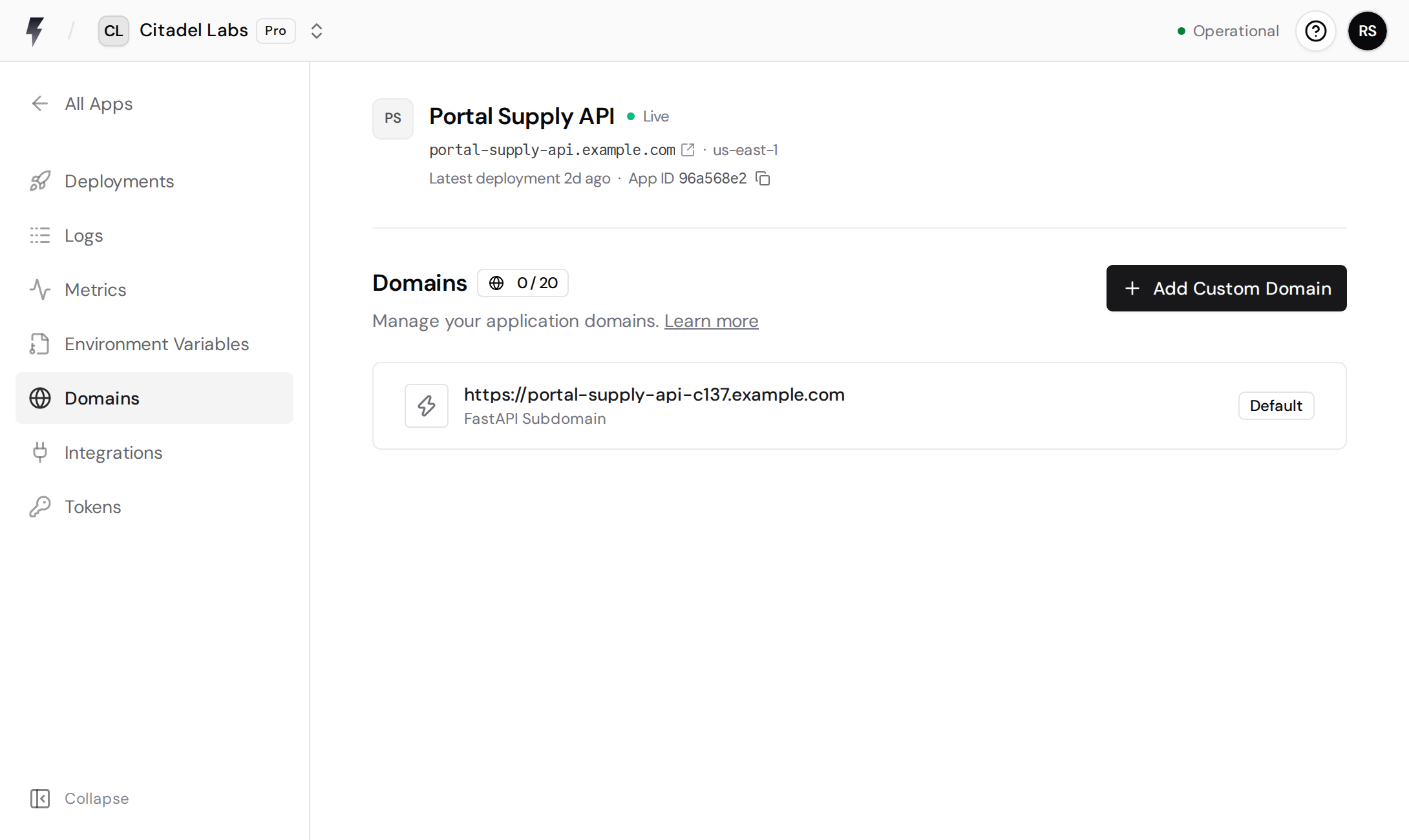
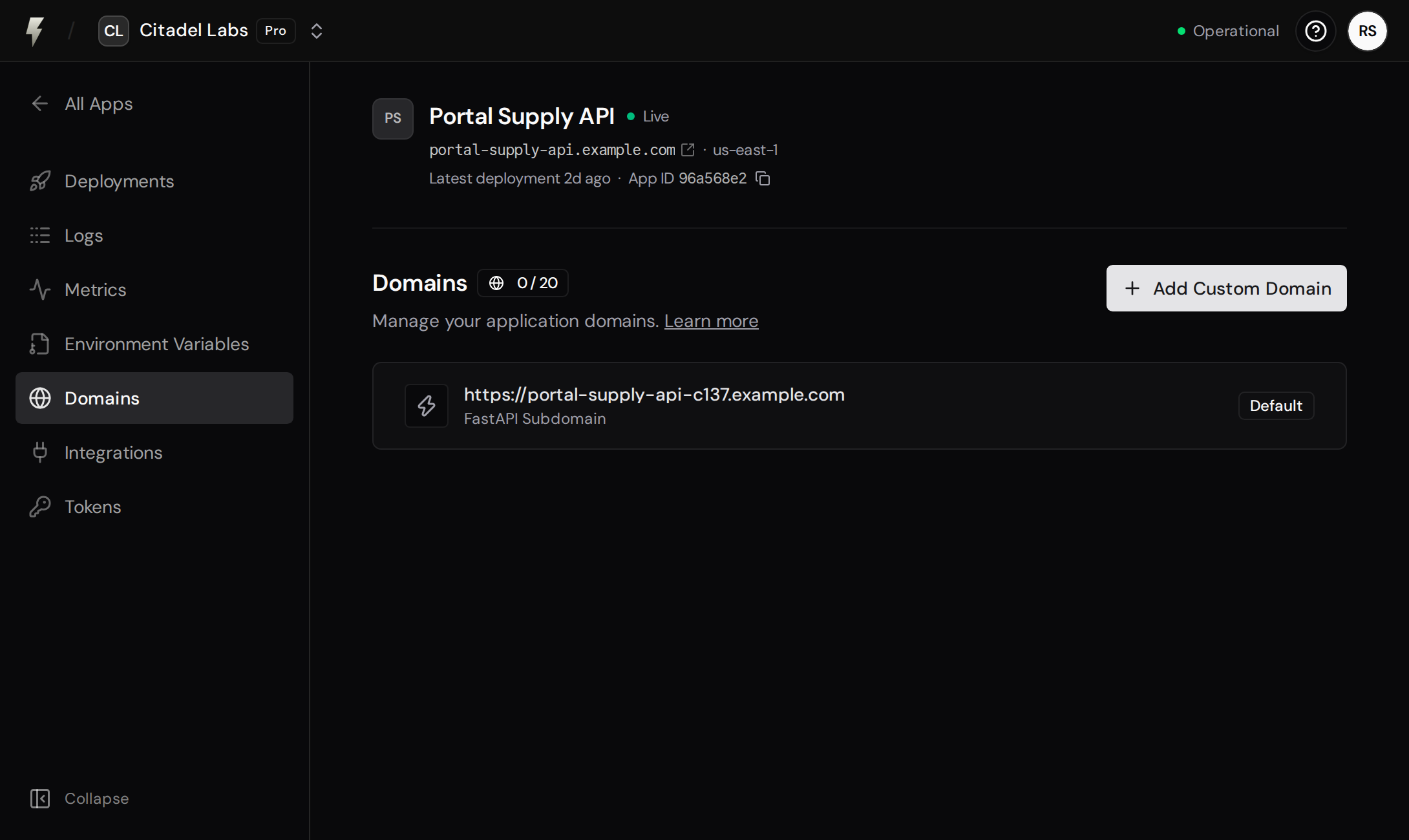
- Enter your domain (e.g.
aperture.ioorcake.aperture.io), do not includehttp://orhttps://. - Optionally enable Zero Downtime Migration.
- Click Add Custom Domain.
Both apex domains (aperture.io) and subdomains (cake.aperture.io) are supported.
Standard Flow
Section titled “Standard Flow”The standard flow is the simplest way to set up a custom domain — the right fit when the domain isn’t live yet. You configure your DNS to point at FastAPI Cloud, then we verify ownership and issue the certificate. The domain stays inaccessible until that certificate is issued.
Already serving production traffic on this domain? Use Zero Downtime Migration to switch over without any downtime.
Configure DNS
Section titled “Configure DNS”After adding the domain, the dashboard shows the exact DNS records you need to add at your DNS provider, with copyable values and grouped by setup step. Depending on whether you chose an apex domain or a subdomain, you’ll see:
- A
CNAMErecord (for a subdomain) orArecords (for an apex domain) that route traffic to FastAPI Cloud. - A
TXTrecord to verify you own the domain (apex domains).
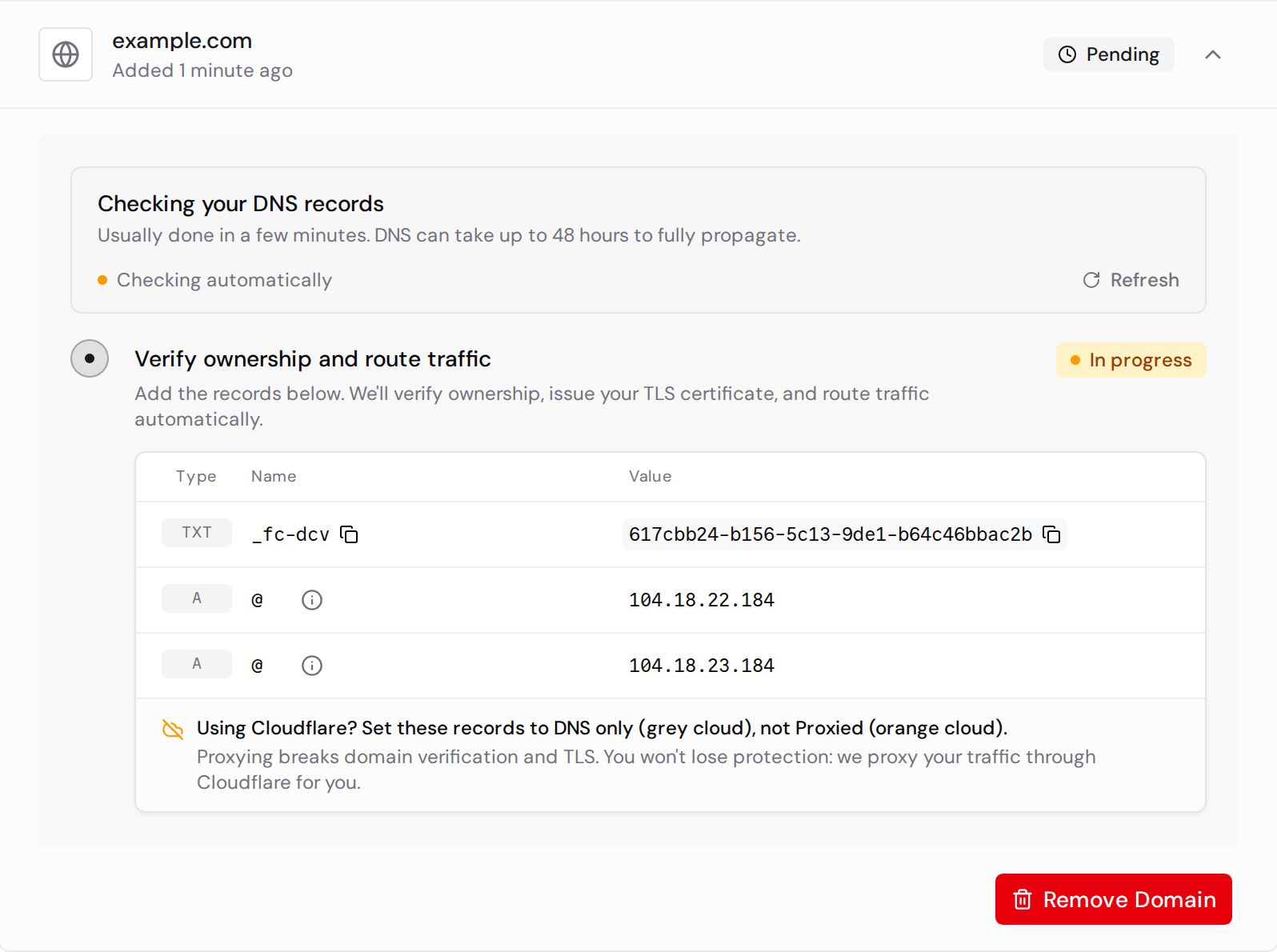
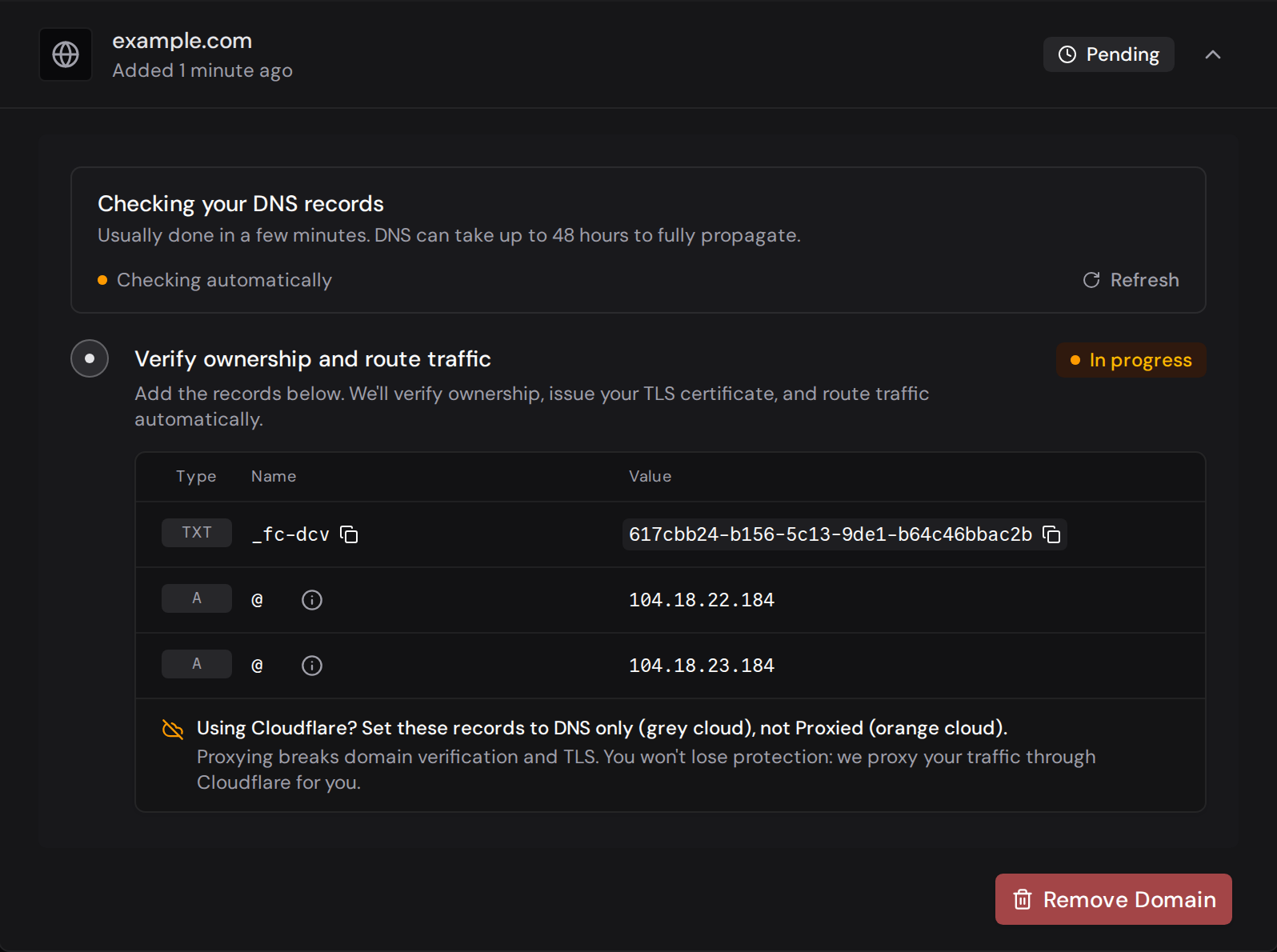
Add the records exactly as shown, replacing any record that already exists with the same name. DNS changes may take up to 48 hours to propagate, though they usually complete within a few minutes. If the process gets stuck, or your provider doesn’t let you edit the DNS records, see Conflicting DNS records.
The tables below show the shape of the records you’ll see, so you can recognize them in your DNS provider’s interface.
Apex domain (e.g. aperture.io)
Section titled “Apex domain (e.g. aperture.io)”| Type | Name | Value |
|---|---|---|
TXT | _fc-dcv | 9f6f98be-3c03-4889-87f9-e597abbd12ef |
A | @ | <FastAPI Cloud proxy IP> |
A | @ | <FastAPI Cloud proxy IP> |
Subdomain (e.g. cake.aperture.io)
Section titled “Subdomain (e.g. cake.aperture.io)”| Type | Name | Value |
|---|---|---|
CNAME | cake | <your-domain-id>.endpoints.fastapicloud.dev. |
Verification
Section titled “Verification”Verification happens automatically. In the standard flow it is a single Verify ownership and route traffic step. While setup is in progress, the dashboard polls your DNS records and shows when it last checked (“Checking automatically · updated …”).
If a record is found but its value doesn’t match, the step is flagged Needs attention; correct the value at your provider and it’s re-checked automatically, no restart needed. If verification fails outright (for example, a timeout from slow DNS propagation), a Restart Verification button appears so you can start over. When everything is in place, the dashboard shows Your domain is live.
Zero Downtime Migration
Section titled “Zero Downtime Migration”If your domain is already serving production traffic somewhere else and you want to avoid downtime when switching it over, follow these instructions instead of the standard flow.
Enable Zero Downtime Migration in the Add a Custom Domain dialog when you add the domain.
When enabled, you add DNS records up front so that TLS certificates are issued and the domain is fully prepared before you point it to FastAPI Cloud. The dashboard guides you through three sequential steps, each of which unlocks the next automatically once it verifies:
- Prove ownership: Add the
TXTrecord at_fc-dcv. Its value is shown in the dashboard immediately. This proves you own the domain, so we can register it on our end. We re-check every minute and unlock the next step automatically. - Secure your domain: Once ownership is verified, this step unlocks and the dashboard populates a second
TXTrecord. Add it together with theCNAMEat_acme-challengeto complete ownership verification and certificate validation. Both records sit on separate hostnames, so your live site doesn’t change yet. - Switch traffic: Once your domain is secured, this step unlocks. A pre-flight check confirms your records resolve and your certificate is ready, then you replace your existing
CNAME(for a subdomain) orArecords (for an apex domain) with the ones for FastAPI Cloud, and traffic moves over with no downtime. If the process gets stuck, or your provider doesn’t let you edit the DNS records, see Conflicting DNS records.
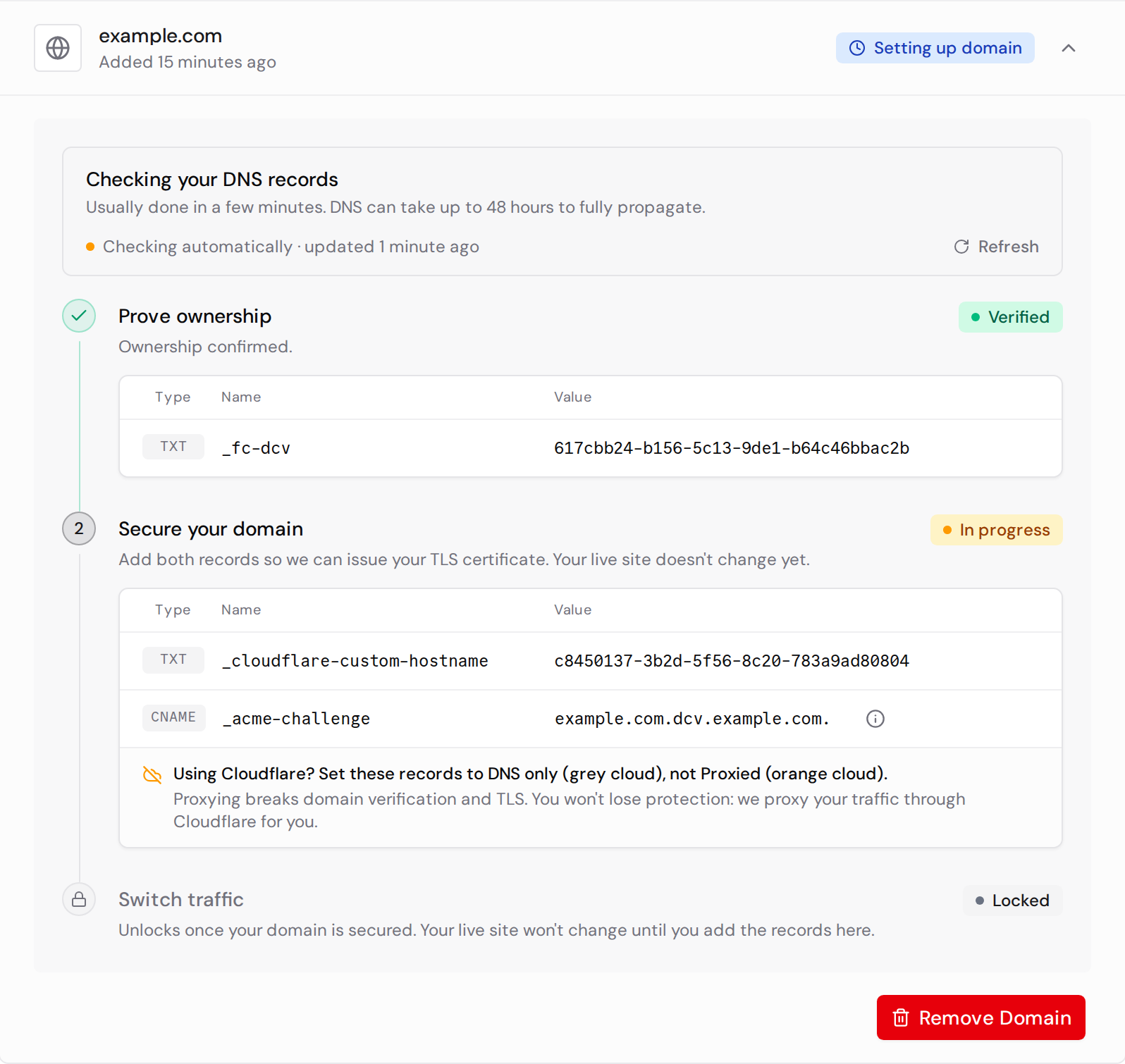
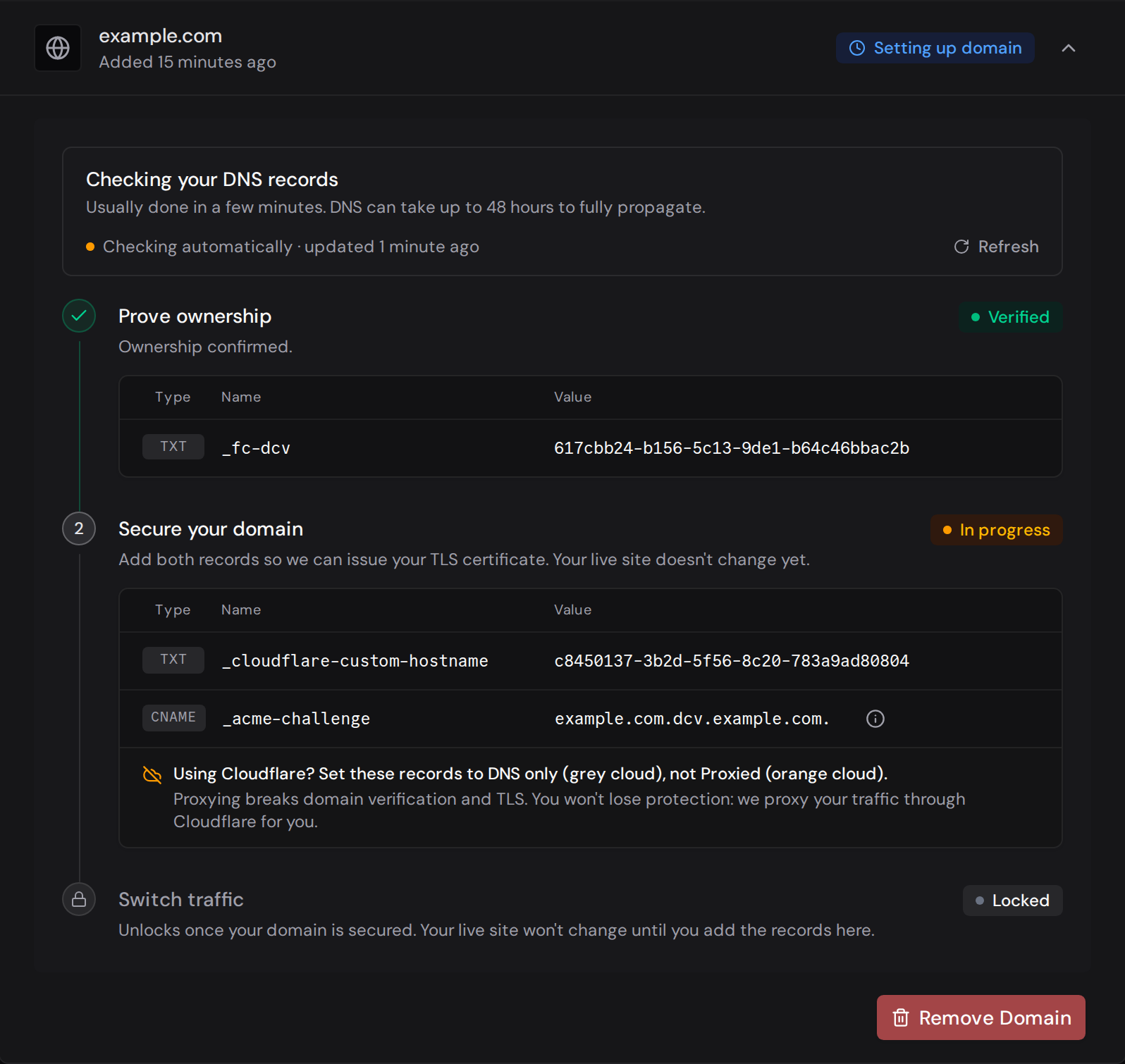
As in the standard flow (see Verification), a step whose value doesn’t match is flagged Needs attention and re-checked automatically, and a Restart Verification button appears if verification fails.
Record Examples (Zero Downtime Migration)
Section titled “Record Examples (Zero Downtime Migration)”These show the full set of records used during a zero-downtime migration. The ownership and certificate-validation records (_fc-dcv, _acme-challenge) sit on separate hostnames, so adding them doesn’t affect your live site; you add the final traffic record (the apex A records or the subdomain CNAME) only at the Switch traffic step.
Apex domain (e.g. aperture.io)
Section titled “Apex domain (e.g. aperture.io)”| Type | Name | Value |
|---|---|---|
TXT | _fc-dcv | 9f6f98be-3c03-4889-87f9-e597abbd12ef |
TXT | populated after _fc-dcv verifies | populated after _fc-dcv verifies |
CNAME | _acme-challenge | aperture.io.<token>.dcv.cloudflare.com. |
A | @ | <FastAPI Cloud proxy IP> |
A | @ | <FastAPI Cloud proxy IP> |
Subdomain (e.g. cake.aperture.io)
Section titled “Subdomain (e.g. cake.aperture.io)”| Type | Name | Value |
|---|---|---|
TXT | _fc-dcv.cake | 9f6f98be-3c03-4889-87f9-e597abbd12ef |
TXT | populated after _fc-dcv.cake verifies | populated after _fc-dcv.cake verifies |
CNAME | _acme-challenge.cake | cake.aperture.io.<token>.dcv.cloudflare.com. |
CNAME | cake | <your-domain-id>.endpoints.fastapicloud.dev. |
TLS / SSL
Section titled “TLS / SSL”TLS certificates are issued, installed, and renewed automatically. HTTPS is enabled as soon as the certificate is in place, no manual setup required.
Certificate Authority
Section titled “Certificate Authority”FastAPI Cloud certificates are issued by Google Trust Services, a Certificate Authority (CA) trusted by all major browsers and operating systems.
Certificate Authority Authorization
Section titled “Certificate Authority Authorization”If your domain has a Certificate Authority Authorization (CAA) record, make sure it authorizes certificate issuance by Google Trust Services.
Otherwise, certificate issuance cannot complete and your custom domain may not proceed past the Domain active, securing TLS state.
Apex domain
Section titled “Apex domain”To allow Google Trust Services to issue certificates for an apex domain, for example aperture.io, the CAA record would look like this:
| Type | Name | Value |
|---|---|---|
CAA | @ | pki.goog; cansignhttpexchanges=yes |
Subdomain
Section titled “Subdomain”To allow Google Trust Services to issue certificates for a subdomain, for example cake.aperture.io, the CAA record would look like this:
| Type | Name | Value |
|---|---|---|
CAA | cake | pki.goog; cansignhttpexchanges=yes |
Troubleshooting
Section titled “Troubleshooting”Conflicting DNS records
Section titled “Conflicting DNS records”The records that route traffic to FastAPI Cloud — the apex A records or the subdomain CNAME — must replace whatever currently lives at that hostname. If an old record (pointing to a previous host or CDN) is left in place alongside the new one, visitors are split between the old host and FastAPI Cloud, and the domain appears to work only some of the time.
Remove the conflicting records before, or as, you add FastAPI Cloud’s:
- Apex domain (e.g.
aperture.io): remove any existingA,AAAA, orALIAS/ANAMErecords on@that point to another host. - Subdomain (e.g.
cake.aperture.io): aCNAMEcan’t coexist with any other record on the same name, and you can only have one. Remove any existingA,AAAA, orCNAMEon that subdomain first.
This doesn’t affect your other records — even on the same name, types like MX (email) and TXT (SPF/DKIM) keep working, and records on unrelated subdomains are untouched too. The ownership and validation records (_fc-dcv, _acme-challenge) also live on their own hostnames, so they never conflict.
Two other things can also block setup:
- If a
CAArecord exists for your domain, it may block certificate issuance — see Certificate Authority Authorization. - A proxy or CDN in front of your domain blocks setup — turn it off at your provider (often a toggle like Cloudflare’s Proxied / orange cloud, sometimes a
CNAMEto a CDN host such as…cloudfront.net).
Remove a Custom Domain
Section titled “Remove a Custom Domain”- On the Domains page, find the domain you want to remove.
- Click Remove Domain.
- In the confirmation dialog, type
delete <your-domain>to confirm. - Click Remove Domain to permanently remove it.
The DNS records at your provider can then be safely deleted or pointed elsewhere.
Default FastAPI Cloud URL
Section titled “Default FastAPI Cloud URL”Your app remains accessible at its automatic FastAPI Cloud URL, regardless of any custom domains you attach:
https://your-app.fastapicloud.devThis URL has TLS enabled by default and works immediately after a successful deployment.